According to my Twitter feed, it is Cybersecurity Awareness Month. To celebrate the occasion I have decided to write down some tips that will hopefully be of use to non-technical friends and family.
The Simple Stuff - Passwords & 2FA
1. Use a Password Manager
If you take one thing from this, it’s that you should be using a password manager. If you aren’t familiar with what these are, they generate and store secure passwords for you, ensuring that all of your passwords are strong and unique. Having a different password for every service is important to protect yourself in the event one of your accounts is compromised. Remembering and regularly updating dozens of secure passwords without a password manager is not realistic.
2. Use a long password
While it is common knowledge to most people that using special characters makes your password more secure, it is perhaps less obvious how much more effective it would be to make your password longer. Services don’t, or at least shouldn’t, store your password as plain text. Instead they run your password through a complicated algorithm and store the result, called a hash, every time you log in they run whatever you put in the password field through the same algorithm and check that the hash matches. If your password hash is compromised in a data breach, a malicious actor can “crack” your password by using a computer program to test lots of combinations of words and phrases until they also find the matching hash. This is much harder the longer your password is. Consider this chart , showing the time it would take to brute force a password in 2024. I’ll use a subsection here to illustrate my point:
| Characters | Lower & Uppercase | All Characters (% inc) |
|---|---|---|
| 6 | 2 Hours | 12 Hours (500%) |
| 12 | 4m Years | 164m Years (4000%) |
| 18 | 91qd Years | 19qn Years (21,000%) |
For context, the percentage increase between a 6 character password with numbers and special characters and a 12 character password without them is 292,200,000,000%.
Your password should be at least 10 characters, in my opinion.
3. Use a secure password or passphrase
The second important factor you should consider is that your password is secure, meaning it cannot be guessed, and would not not appear in any list of passwords. That means no personal information (names, birthdays, hometown etc), no public information (song lyrics, quotes from books, common expressions etc) and most of all no re-used passwords. If the distribution of four digit pin codes is anything to go by (27% of people use 0.2% of possible combinations) people often default to using insecure passwords out of convenience. You shouldn’t do this - take the time to come up with something secure. If you use a password that is in a list of common passwords, or previously breached passwords, the table above would look like this:
| Characters | Lower & Uppercase | All Characters |
|---|---|---|
| 6 | Instantly | Instantly |
| 12 | Instantly | Instantly |
| 18 | Instantly | Instantly |
While using a long password or passphrase makes it more likely your password will be secure, it is still important to make sure no one could easily guess it.
Here is an example of how you might develop a secure master passphrase:
Step 1 - Think of a group of three or four people you know. Put each of the people in some order.
 Step 2 - Think of a unique word that you associate with each of the people individually. You get bonus points if it’s not a real word.
 Step 3 - String the words together in the order you chose in Step 1.
 Step 4 - Add uppercase & special characters where still readable.

Following steps like these should lead you to develop a passphrase that is secure and easy to remember. The down side is you should update it regularly to keep it secure.
4. Enable 2FA via an Authenticator App
Two factor authentication codes are an important backstop should someone try to access one of your accounts - you should be using 2FA everywhere that lets you. However, 2FA is not foolproof, especially via SMS, and, in a worst case scenario, a malicious actor can intercept the 2FA code and use it to take further control of your account. The easiest way to prevent this is to use an app on your phone that randomly generates 2FA codes for you. Unfortunately, not all services allow you to use an authentication app to generate 2FA codes, but you should use it wherever possible.
Stay Safe Online - Malvertising, HTTPS, and Temporary Email
5. Be Aware SEO Poisoning
SEO poisoning is where an attacker creates a website and pays for it to appear in search results for a popular search term, like Canada Post tracking or Amazon customer service, in the hopes that unsuspecting users will fail to notice that the website is not the official website, and unsuspectingly enter personal information, download malware, or be directed to a scam call center posing as customer service. It is a form of malvertising (a portmanteau of “malicious advertising”), where an attacker attempts to compromise you after tricking you into clicking on an ad for what you think is a reputable service. Modern tools can create frighteningly realistic copies of official websites fairly easily, making this a viable tactic for scammers of all skill levels, and while most people are aware of the risk of phishing emails, they are less aware of the risk of SEO poisoning. You should be aware of these tactics and either ignore search results marked as advertisements, or be cautious when clicking on them, especially if you are looking for customer service numbers.
6. Only use trusted browser extensions
Browser extensions are generally quite permissive - in order to function they need to be able to read and often modify the content from your browser. While many useful extensions do legitimately require these permissions, the same permissions can be abused by malicious extensions to steal sensitive data from your browser. You should be aware what permissions an extension asks for, and only install extensions requiring sensitive permissions from reputable sources. You should also make a habit of disabling any extensions you use infrequently, and to uninstall any extensions you no longer need. If you have to use a browser extension that requires sensitive permissions you might not be comfortable with, consider installing it in a separate browser profile, or having a second browser installed.
7. Enable HTTPS everywhere
Contrary to what a lot of VPN marketing would lead you to believe, the vast majority of the web already uses end-to-end encryption to secure your web traffic. It’s called HTTPS, and you can see if a website is using it by looking at the address bar in your browser - it should look like https://www.iainkennedy.com and not http://www.iainkennedy.com. Most browsers automatically upgrade your connection to use HTTPS wherever possible, and will have a setting that you can enable to warn you before proceeding if a website cannot be upgraded to HTTPS, it looks like this on Firefox:
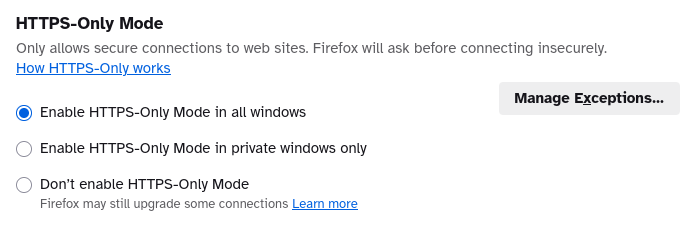
I suggest you enable this setting if it isn’t already enabled by default, and proceed with caution when bypassing the warning to visit a page that is not using HTTPS.
Know, also, that HTTPS is not a silver bullet - it only encrypts the traffic between you and the website, it does not protect you from the website itself - and malicious websites can also obtain the required certificates for HTTPS. Use it only as a way to verify that your connection is secure, not as a way to verify the legitimacy or trustworthiness of the website you are visiting.
8. Use temporary email addresses
Your email address has almost certainly been in multiple data breaches (you can check here ). There is no way of un-breaching it, unfortunately. With that said, you probably shouldn’t give it freely to any website that asks for it, unless you trust them. If you only want to try out a service, or use it temporarily, then consider using a throwaway email service like this one - which issues you a temporary inbox that expires after 10 or 15 mins - giving you time to setup an account, confirm your email address, and then never think about it again. You can still use the address (saved in your password manager) to login to the service, but you won’t have to worry about spam or data breaches - you can always add your real email address later if you decide you want to keep using the service.
8b. Check Security Blogs
28/03/2025: The creator of the site I linked to above for checking your email address in data breaches, Troy Hunt, was recently the victim of a successful phish , showing that even knowledgeable people can make mistakes and fall victim to these kinds of attacks. Security researchers, who study these kinds of things for a living, often write posts detailing how attacks work in the hopes of raising awareness and preventing more people from falling victim (and sometimes as an advertisement of their own services). A lot of common tactics are well documented, if you’re unsure whether something is a scam, try finding a blog post about it.
Keep Your Devices Secure - Updates, Backups, and Encryption
9. Keep up to date
Vulnerabilities are normally fixed or ‘patched’ before they can be widely exploited. To protect your device, it’s important to keep it up to date so that you receive these patches regularly. The same is true for any applications that you use. Developers and manufacturers usually guarantee security updates for a certain length of time. Windows 10, which still has 67% of the total Windows OS market share at the time of writing, is due to reach the end of it’s support life one year from now - if you are using Windows 10, you should upgrade to Windows 11 before the 14th of October 2025.
Something else you should keep in mind as it relates to security updates is the IoT (Internet of Things) and “smart” devices. Devices like these might receive updates less frequently than your computer or phone, and, in some cases, they might not receive updates at all, especially if updates need to be initiated by the user. Keep these devices up to date if you can, and, if you want to be extra safe, consider setting them up on an isolated network. I would recommend only buying smart devices from reputable and well researched manufactures - the cheap TV boxes you see marketed on Amazon would be a prime example of something you probably shouldn’t plug into your home network - and keep in mind that seemingly reputable manufacturers may be using third parties that aren’t as reputable . Reading the security policy for these devices isn’t the worst idea, either, especially if you are using them to monitor your home.
10. Backup. Backup. Backup.
Making regular backups of your data is important because it gives you a point to restore from in a worst case scenario. This defends against malicious programs like ransomware, but also against your own mistakes, as you are more likely to lose data through negligence than a malicious actor. Ideally you should follow the “3-2-1” backup rule, and have at least 3 copies of important data, on 2 different types of media, with 1 kept in a different location, but do what is realistic. You should never have a single point of failure for your data.
I would recommend creating a backup of your files, rather than (or in addition to) a full system image. This will reduce the size of your backup and the potential for restoring a malicious executable in the event you need to start fresh. You can restore your applications from the internet, but you can’t restore your files if you don’t have a backup.
11. Encrypt your data
The password on your computer only prevents other people from logging in to the operating system. Unless you encrypt the data itself anyone with physical access to your device can likely access it. For this reason, you should probably encrypt any sensitive data that leaves your house (assuming it’s physically secure and you trust anyone else who has access to your house). This includes data on laptops, off-site backups, and any sensitive data kept in the cloud.
For a laptop, and any drive that leaves your house with sensitive data, it makes sense to use full disk encryption - where all the data on the drive is encrypted and you access it using an encryption key or an additional password when you log in. Your operating system should have tools for enabling full disc encryption, if it isn’t enabled by default, though, sadly, I believe it is only available in the Pro versions of Windows* (If you are comfortable doing things yourself I’ve heard good things about veracrypt ). Using full disc encryption and a strong login password should give you peace of mind that your data is safe if, for example, you leave your laptop somewhere absentmindedly.
* Update: I have read that Microsoft will now enable full disk encryption by default for everyone who uses Windows with a Microsoft linked account (as opposed to a local account), provided your system has a compatible Trusted Platform Module (TPM). If you don’t have a compatible TPM you shouldn’t be using Windows beyond October 2025 anyway .
The alternative to using full disc encryption would be to encrypt only sensitive files - the easiest way to do this is by creating a password protected zip file using an archive utility that uses a strong encryption standard like AES. If you are comfortable using a command line interface, I would recommend age , you can find my wrapper for age on github here .
You can also use these methods to encrypt any particularly sensitive data that you upload to cloud storage. There is a joke that “the cloud” is just someone else’s computer - that isn’t entirely fair, but, unless you need to work on your data in the cloud, it doesn’t hurt to encrypt it. Again, those comfortable with the command line might want to look into rclone - which is how I encrypt sensitive data I store in the cloud - you can find my rclone script on github here .
That’s it! I hope you found these tips useful. If you have any questions get in touch .
Stay safe!
Iain